

Setup for Dynamic E-mail/SMS Center
Overview
Use this page to set up dynamic email or SMS templates. You can send them automatically to bookings that match your rules and filters.
Purpose
This feature is designed to:
Send automatic messages for common situations (confirmations, reminders, promotions).
Keep the wording consistent across email and SMS.
Reduce manual work by sending messages based on rules and filters.
General

Access
Open E-mail Setup → Dynamic E-mail/SMS Center, then choose New Email Template.
Template types
You can create different template types, such as:
Dynamic Email/SMS
Confirmation Transfer
Confirmation Hotel
If you are setting up confirmation templates, also read Hotel and transfer confirmation emails to suppliers.
Required first step: select a brand
Before you edit anything, select the correct brand in the top-left dropdown.
Basic template settings
Template name: a clear name you can recognize later.
Email Type: allow yo create different email type.
Template type: the kind of message you are setting up.
Active: allows the template to be used for sending.
Hidden: hides the template from the Dynamic E-mail/SMS Dashboard list.
Hour to send: the time the email/SMS should be sent. Sending can be delayed by up to about 20 minutes. If you leave it blank, it is sent as soon as all rules match.
Product Resourser With And: when checked, the system finds all bookings with all resources purchased / not purchased
Email-only settings
Attach ticket: attaches the booking ticket to the email.
From name: sender name shown to the customer.
From e-mail: sender email address. Use a real address.
Reply to: where replies should go. Use a real address.
BCC: email addresses that should receive a copy. Use real addresses.
Optional product filters
Customers who have bought: include bookings that bought selected categories.
Customers who have not bought: exclude bookings that bought selected categories.
Sending options

Use these fields to decide when the message should be sent.
The first dropdown contains the primary sending options for the template:
Booking date
Departure date
Return home date
Moved booking
Canceled booking
Last minute
The second dropdown contains the timeframe options:
Before
After
In the third field, enter the number of days. The email/SMS is sent as soon as all requirements are met.
Important
You can add more than one sending rule. Be careful when you combine rules.
If you use different rule types, the booking must match all of them.
If you use the same rule type more than once, the booking matches if any of them apply.
The examples below show how this works.
If you use two or more different rule types, the booking must match all of them. The message is still sent only once.
Example: Send an email or SMS 60 days before departure and 2 days after booking date.

If you set the same rule type more than once, the booking matches any of them. The system still sends only one message.
Example:

First Booking: One booking is made more than 25 days before departure, and the email template is configured as follows:
20 days before departure
18 days before departure
16 days before departure
14 days before departure
In this case, the booking will receive only one email scheduled for 20 days before departure. It will not receive additional emails at 18, 16, or 14 days before departure.
Second Booking: This booking is made 17 days before departure. With the same configuration, it will receive only one email scheduled for 16 days before departure. No additional email will be sent at 14 days before departure.
The system sends only one message per template, even if you add several “when to send” conditions.
Product and discount/supplement filters

Use these fields to filter bookings based on what they bought. “Disc/suppl” means discounts and supplements.
Product Resourcer
Default set-up
If you select multiple items in Customers who have bought, a booking qualifies if it bought at least one of them.
If you select multiple items in Customers who have not bought, a booking is excluded if it bought at least one of them.
Product Resourcer With And changes the “at least one” behavior to “all of them”.
If you select multiple items in Customers who have bought, a booking qualifies only if it bought all of them.
If you select multiple items in Customers who have not bought, a booking is excluded if it bought at least one of them.
For example, the email will be sent out as follows:
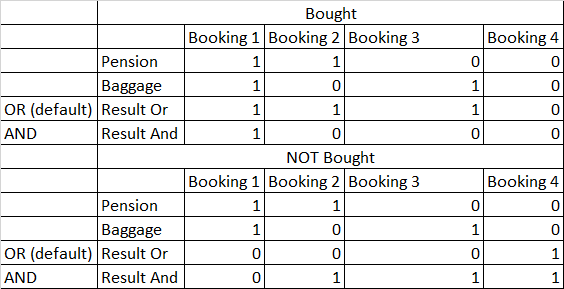
Note: 1 means the email is sent. 0 means it is not sent.
Message content

The message editor works like the regular E-mail Center.
Add a link to the Customer Center
Write the link text (for example, “Open your booking”). Select it. Then click the link button shown in the screenshot.

In the URL field, insert the [Hash-key-link]. Select the other protocol, as shown in the screenshot.

Date filters

Use these fields to filter bookings by booking, departure, arrival, and return dates.
Destination filters

Dynamic Emails can be configured to vary their content based on departure/arrival details and transport characteristics. This makes it possible to deliver highly targeted emails, such as departure specific instructions or airport related information.
Dynamic Emails can be filtered so that a specific email template is sent only when defined booking, destination, or transport conditions are met. Filters are combined to precisely control when an email is triggered.
Destination Filters
Destination filters define where the booking applies. You can filter Dynamic Emails by:
Countries
Departures (departure airports or locations)
Arrivals
Resorts
Hotels
This allows, for example, sending different emails based on the departure airport or destination hotel.
Transport Filters
Transport-related filters define how the customer is traveling:
Transports
Real Transports
Transport Suppliers
Transport Modes
Transport Types
These filters make it possible to distinguish between different suppliers, charter vs GDS flights, or system vs external transports.
How Filtering Works
Filters are inclusive. If a filter is set, the booking must match it for the email to be sent.
Multiple filters can be combined to create highly specific rules.
If a filter category is left empty, it does not restrict the email.
Typical Use Case
You can configure different Dynamic Email variants such as:
One email for passengers departing from Airport A with Supplier X
Another email for Airport A with Supplier Y
A third email for Airport B with Supplier X
This is especially useful for departure-specific information, such as parking instructions or airline-specific details.
These filtering options ensure that customers receive only the most relevant communication for their exact booking context.
Resource filters (product links)
Use Resource filters to send clickable product links to guests. Guests can add the product to their booking with very little effort.

When you use Resource filters, a special variable becomes available in the email body.

You can attach this variable to a button, text, or image. When the guest clicks it, they are taken to the Customer Center. They will see a message that the product is added. They must save the booking to confirm it.
If you send several links, only the clicked link is applied.
There can be only one link per category.
If you select multiple products in a category:
For a multi-select category, all selected products are added.
For a single-select category, the cheapest selected product is added.
Caution
An email or SMS template that has been sent to a booking cannot be resent.
Be careful when creating a template. If you make a mistake, avoid editing the same template. A booking can receive a template only once.
FAQ
Can I resend the same template to the same booking?
No. A booking can receive a template only once. Create a new template if you need to send a corrected message.
What happens if I leave “Hour to Send” blank?
The message is sent as soon as all rules and filters match.
Why can there be a delay after the selected time?
Sending can be delayed by up to about 20 minutes. This is normal.
I added several “when to send” rules. Will the booking get several messages?
No. The system sends only one message per template. The extra rules only decide when that one message should be sent.
What is the difference between email and SMS templates?
Email templates can include a subject and a message body. SMS templates are meant for short messages.
Why does my product filter include more bookings than I expected?
In the default setup, “Customers who have bought” matches if the booking bought at least one selected item. Switch to “Product Resourcer With And” if you want “all selected items”.
Where do I select the brand?
Use the brand dropdown in the top-left corner of the setup screen. Always check it before you save or activate a template.
What does “Hidden” do?
Hidden removes the template from the dashboard list. Use it to keep the list clean.
Why is my email missing sender details?
Email templates need sender details. Fill in From name and From e-mail.
Last updated
Was this helpful?